






























































Downloading and Restoring Databases
For many websites, especially high-transactional ones such as eCommerce stores or booking systems, the file structure may remain largely unchanged while the database is constantly updating. Orders, customer data, and content changes are all stored within the database, making regular database backups essential.
Hipposerve® Rewind includes database backup functionality as standard, with the option to enable hourly database backups for a rolling 72-hour period, providing enhanced protection for rapidly changing data.
1. Accessing Your Database Backups
From your Hipposerve® Rewind panel, select the Database tab or menu item.

This will display a list of your databases, along with the number of available backup points. Select the database you wish to restore or download.
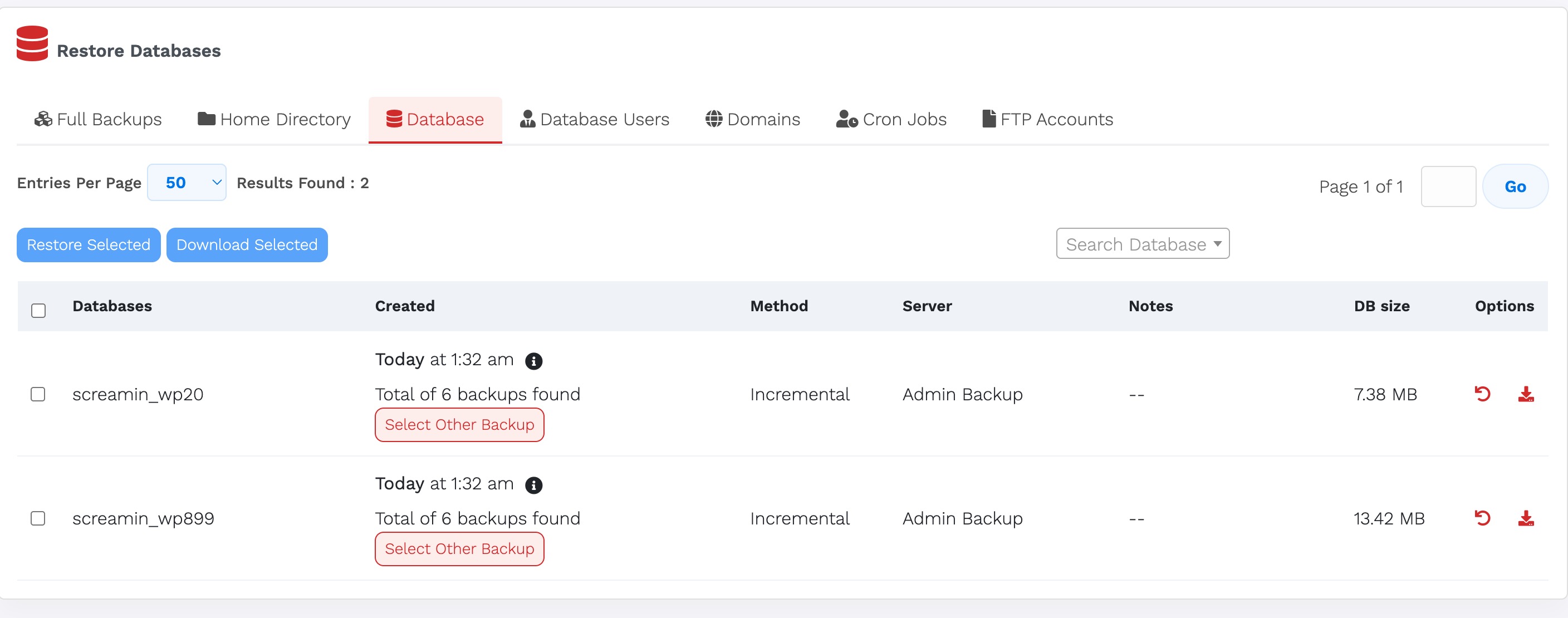
You can then choose the specific date and time of the backup you want to use.
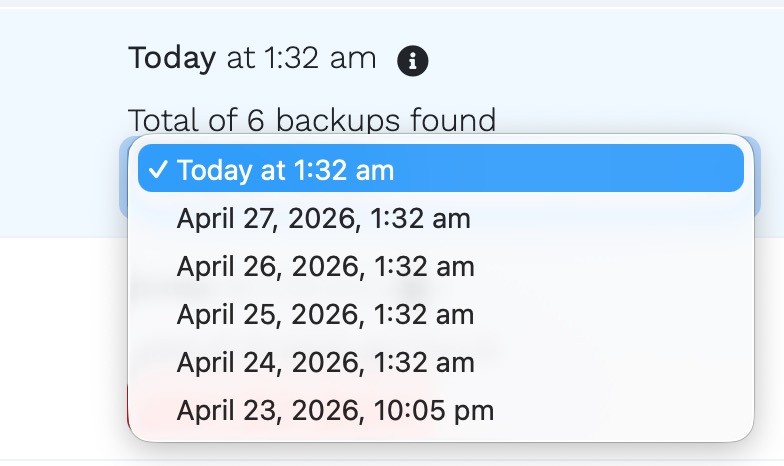
2. Restoring a Database
To restore a database, click the Restore icon.

Next confirm your request.
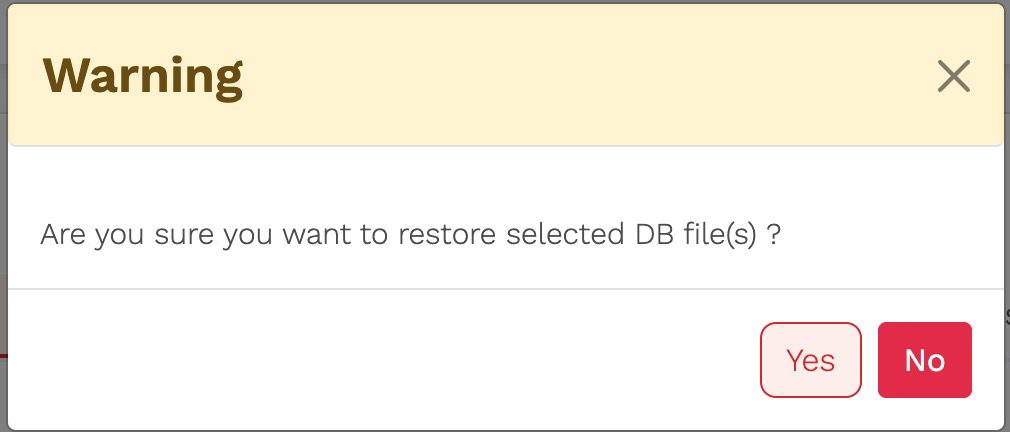
Please note: Restoring a database will overwrite the current version and remove any changes made after the selected backup date and time.
3. Downloading a Database
You can also download a copy of your database by clicking the Download icon.

Once requested, the database will be prepared and made available in the View Downloads section of the Hipposerve® Rewind panel.
To complete the download process, follow the guide here:
Downloading a Full Copy of Your Website