






























































Downloading a Full Copy of Your Website
If you wish to archive your website, keep a local copy, or download it for migration purposes, you can use the download feature within Hipposerve® Rewind.
1. Accessing the Download Area
You can access the download area in the same way as outlined in our guide here:
Restoring Your Website
2. Preparing Your Download
Choose the backup version you wish to download. Instead of clicking the restore button, click the Download icon.

Then confirm your request.
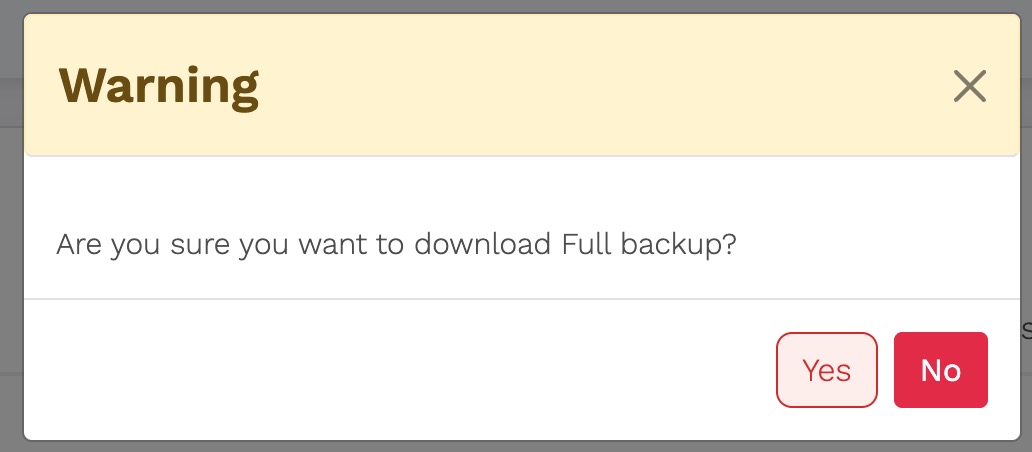
To prepare your download, the backup files are retrieved from our external backup servers, compressed, and packaged into a downloadable file. This process can take anywhere from a few minutes to several hours, depending on the size of your website.
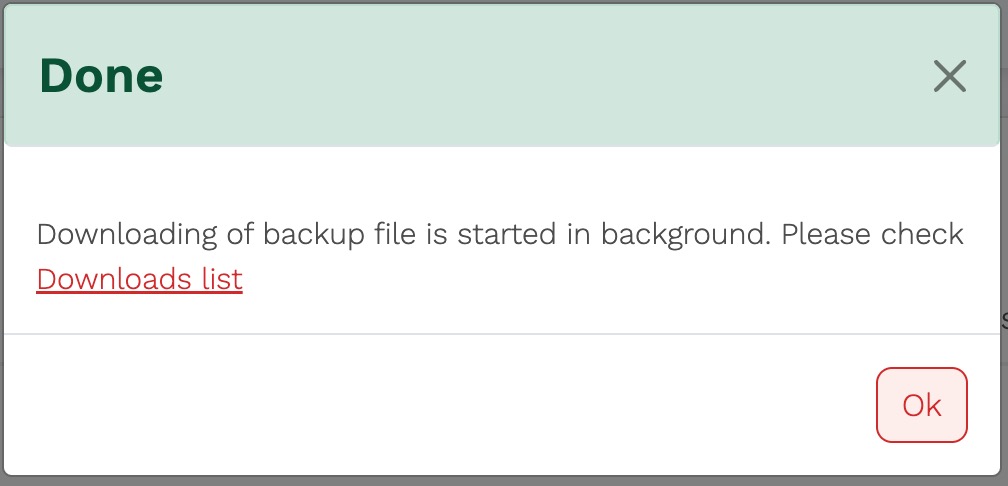
You can monitor the progress of this process by viewing the Logs section within the panel.

3. Downloading Your File
Once your file has been prepared, it will appear in the View Downloads section of the Hipposerve® Rewind panel.
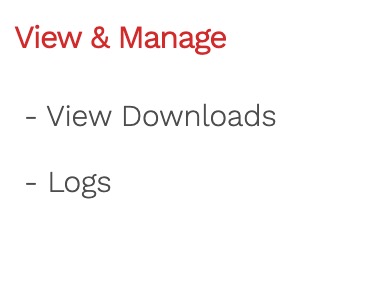
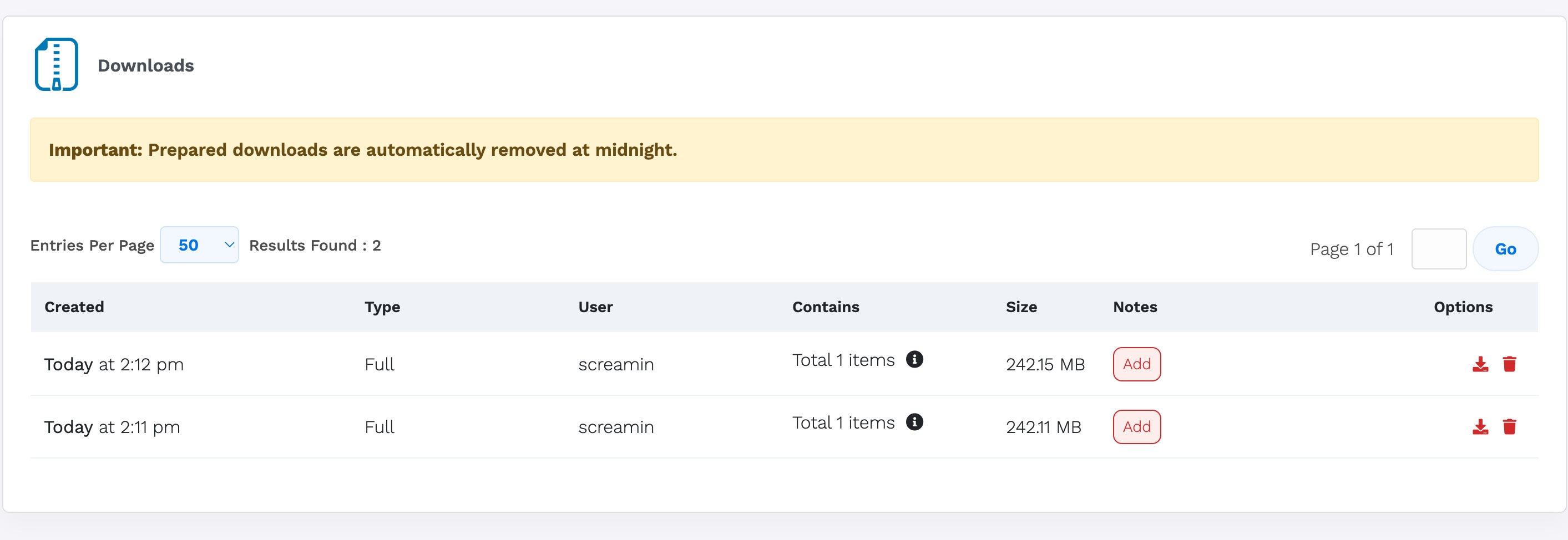
To download the file to your local computer, click the Download icon.
Important
Prepared download files are stored temporarily on our servers and are automatically removed at midnight. Please ensure you download your file before this time to avoid needing to recreate it.