






























































Restoring Your Website
If something goes wrong with your website, you can restore it quickly using Hipposerve® Rewind. The most common option is a Full Backup Restore, which allows you to roll your entire website back to a previous point in time.
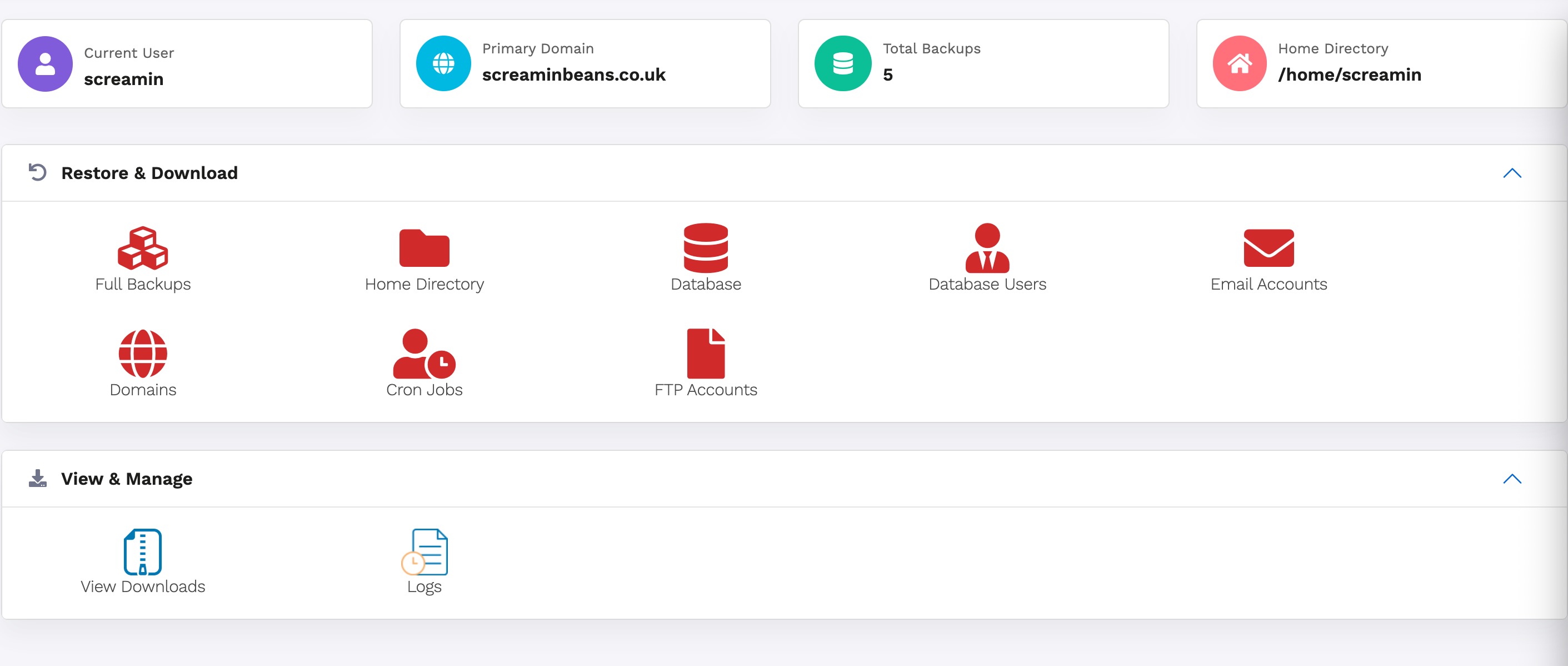
Step 1: Access Full Backups
From the Hipposerve® Rewind home screen, click the Full Backups icon.

This will display a list of available backup restore points.
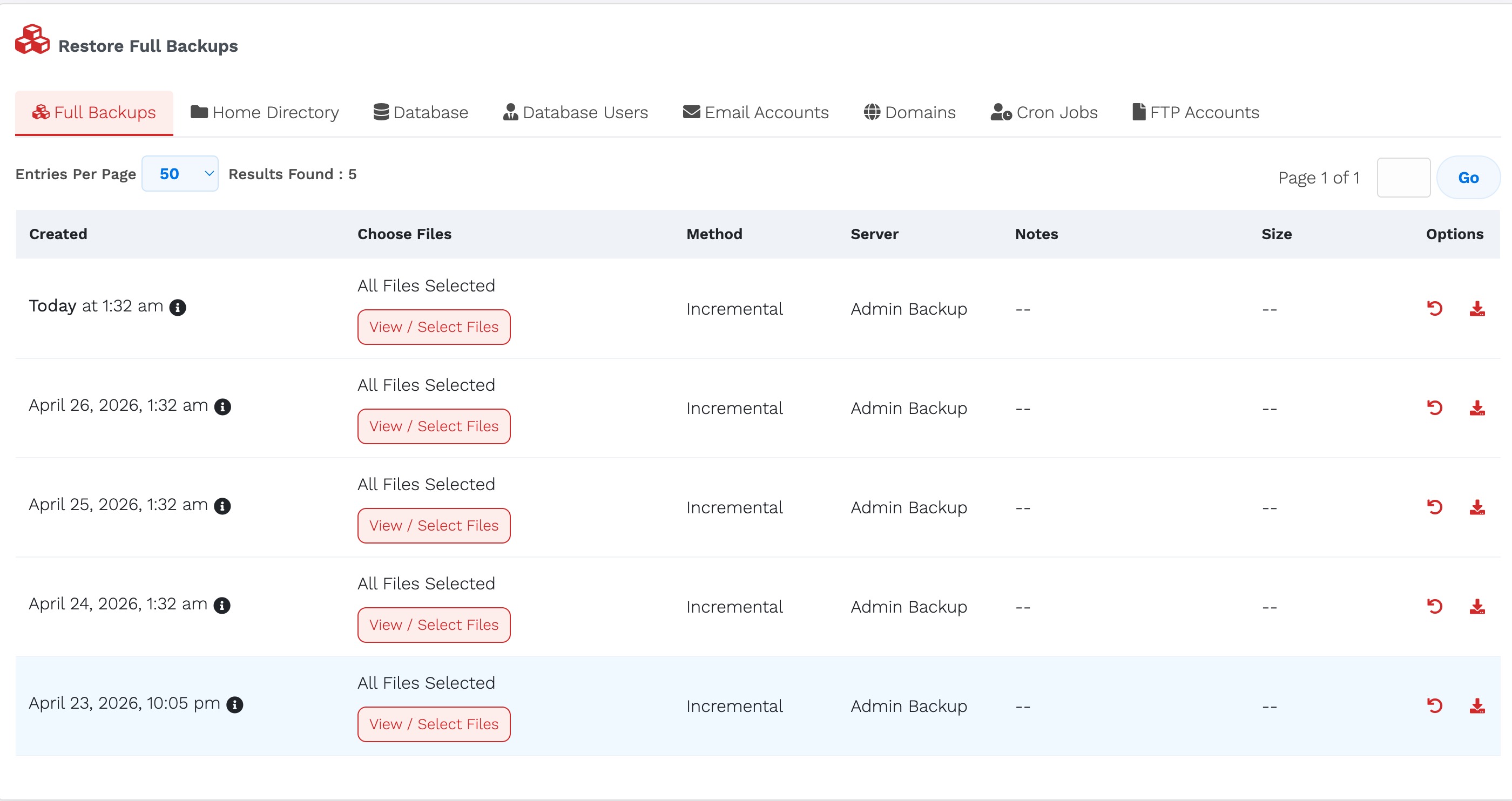
The number of backups available will depend on your backup plan. For example, the standard plan includes 7 days, while extended plans can provide up to 365 days of restore history.
Please note: New plans will naturally show fewer restore points initially, as backups are created over time.
Step 2: Choose a Restore Point
Select the backup you wish to restore to, then click the Restore icon.

You will be asked to confirm your selection.
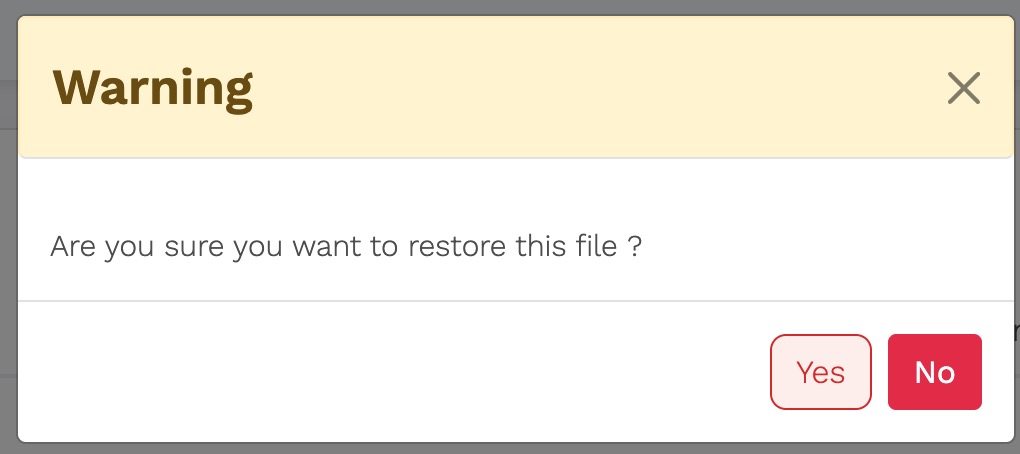
Important: A full restore will completely overwrite your current website with the selected backup version.
Step 3: Restore Process
Once confirmed, the restore process will begin and run in the background.
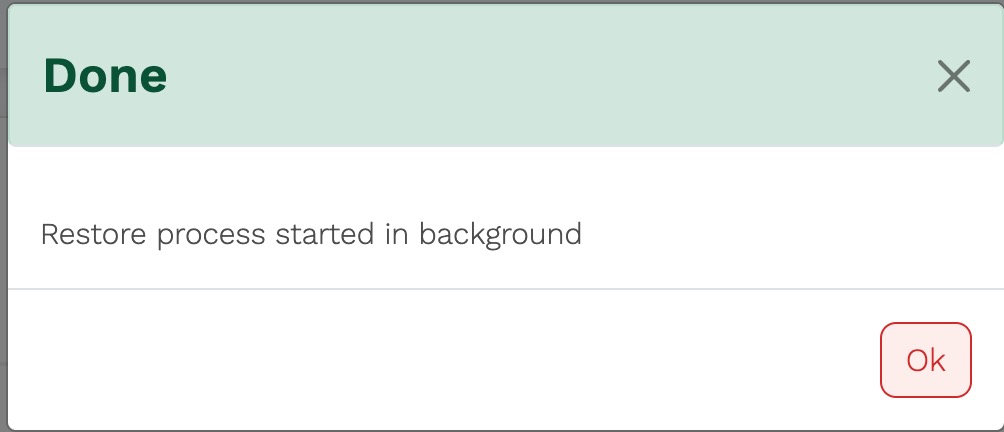
The time required will vary depending on the size of your website. Smaller sites may restore within minutes, while larger sites may take longer.
You can monitor progress at any time using the Logs feature.

Step 4: Completion
Once the restore is complete, your website will be returned to the selected backup version.
Trying Multiple Restore Points
If you are unsure which restore point you need, you can repeat the restore process as many times as required, moving between different backup points until you find the correct version.